The copy-paste loop, and what it costs
The usual way to get help rewriting a document is a loop that repeats for every paragraph:
- Copy a paragraph out of Word.
- Paste it into a chat window or rewriting site, and ask for a revision.
- Copy the answer and paste it back over the original paragraph.
- Repair the formatting. Pasted text often arrives with a different font, size or spacing, and anything you didn't paste (a citation, an italic title, a footnote marker) has to be put back by hand.
That is at least four actions per paragraph. A ten-paragraph report means about forty actions before you have even reread the result. The repetition isn't the only cost:
- Structure drifts. Headings, numbered lists and table cells are easy to overwrite when you paste a block over them.
- Citations get retyped. A rewrite may reword (Okafor & Lind, 2025) or move it to a different sentence, and you have to notice.
- Versions blur. After a dozen pastes it is hard to tell what changed, so a meaning error can slip through.
Three ways to revise without the loop
| Workflow | Best for | Formatting | Watch out for |
|---|---|---|---|
| 1. Edit in Word with Track Changes | Small, targeted edits where every word is your own | Stays exactly as it is, because nothing leaves the file | Slow for heavy rewording of long sections |
| 2. An assistant that works inside Word | People who already pay for one and rewrite a section at a time | Depends on the tool. Usually works on a selection in place | Still one selection at a time. Check what your plan includes |
| 3. Upload the whole file to a document reviser | Long drafts where you want all body text revised in one pass | Depends on the tool. Check what is protected and what file you get back | You must review everything afterwards, not just the parts you asked about |
Our comparisons of specific tools, with dated sources, are linked at the bottom of this page.
Workflow 1: Track Changes, done efficiently
- Save a copy first (File → Save a Copy, or Save As) so you always have the untouched original.
- Turn on Review → Track Changes, so every edit stays visible and reversible.
- Work through the document in one pass per problem: first cut filler openers (“It is important to note that”), then shorten long sentences, then check terminology.
- Accept or reject changes at the end, not as you go.
Workflow 2: an assistant inside Word
- Select one section at a time, not the whole document.
- Ask for a plainer rewrite of that selection.
- Compare it with the original before you accept it, especially names, numbers and citations.
- Check what your Microsoft 365 plan includes and its usage limits.
Details and sources: OwnWords vs Copilot in Word.
Workflow 3: revise the file in place
This is how OwnWords works. You upload the .docx, the body paragraphs are rewritten, and protected parts are left alone: headings, the reference list, citations, fields and very short fragments. Tables keep their layout, but full sentences inside table cells are revised. Then you switch between the original and the revision and download a Word file.
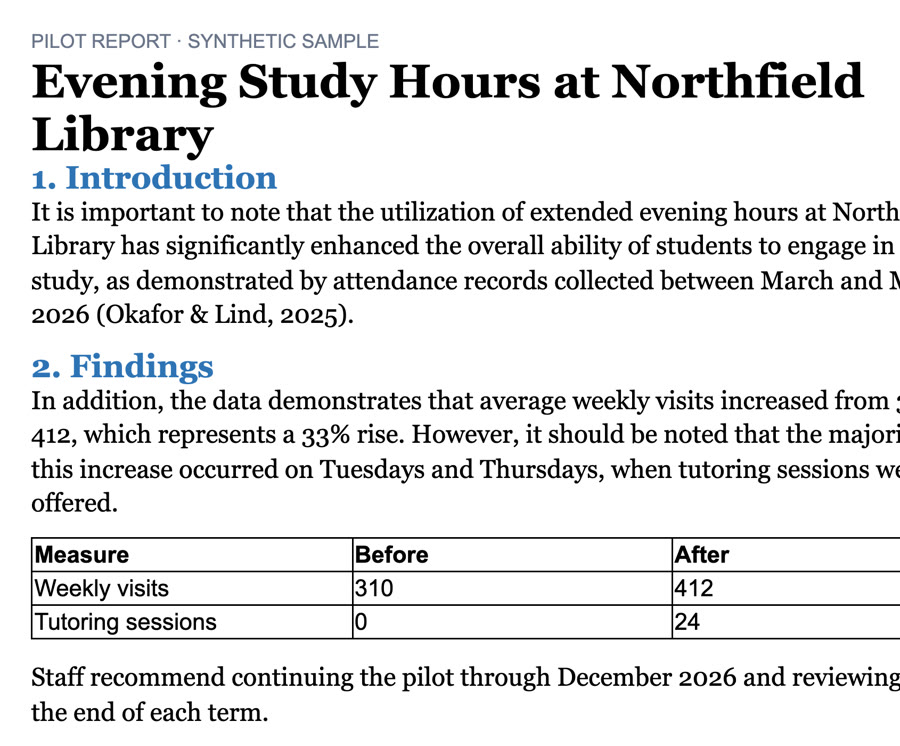
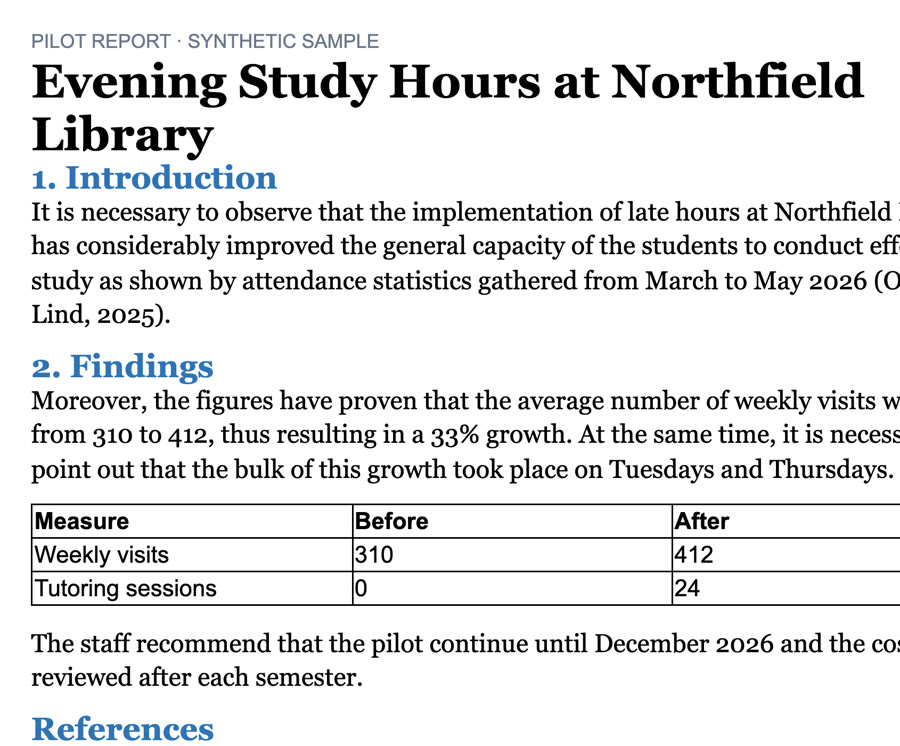
When we compared the two files from that run, only the three body paragraphs had changed. The title, headings, table, citation, reference list, paragraph styles and run formatting were identical, and every number in the prose (310, 412, 33%, 2026) survived. The whole run took 2.9 seconds.
What usually survives, and what doesn't
For any tool that rewrites a document for you, ask these questions before you trust the formatting:
- Do I get the same file type back? A .docx in and a .docx out keeps styles. Pasting into a chat window gives you plain text.
- Is emphasis inside a paragraph kept? In OwnWords, rewritten prose keeps its own font, size, color and emphasis, and short bold, italic or colored phrases are left exactly as written.
- What about headers, footers, footnotes and text boxes? OwnWords leaves them as written (they are not revised).
- Is the pagination identical? Not necessarily. Browser and PDF pagination may differ from Microsoft Word, and reworded paragraphs change length, so check page breaks before printing.
- What about PDFs? A revised PDF keeps its pages and images, but rewritten text is set in a standard font (Times, Helvetica or Courier), and passages that don't fit keep their original wording. The editable Word copy of a PDF is reflowed and may omit graphics. If layout matters, start from the .docx.
A checklist that works with any tool
- Keep an untouched copy of the original.
- Before revising, write down the facts that must not change: names, numbers, dates, the main claim of each section.
- Revise in as few passes as possible, so you review one coherent version, not twenty fragments.
- Compare versions with Review → Compare in Word (choose the original and the revised file). It marks every changed word, whichever tool made the change.
- Read every changed sentence against your list from step 2.
- Check page breaks, captions and the table of contents before you share the file.