1. Choose tone and revision level first
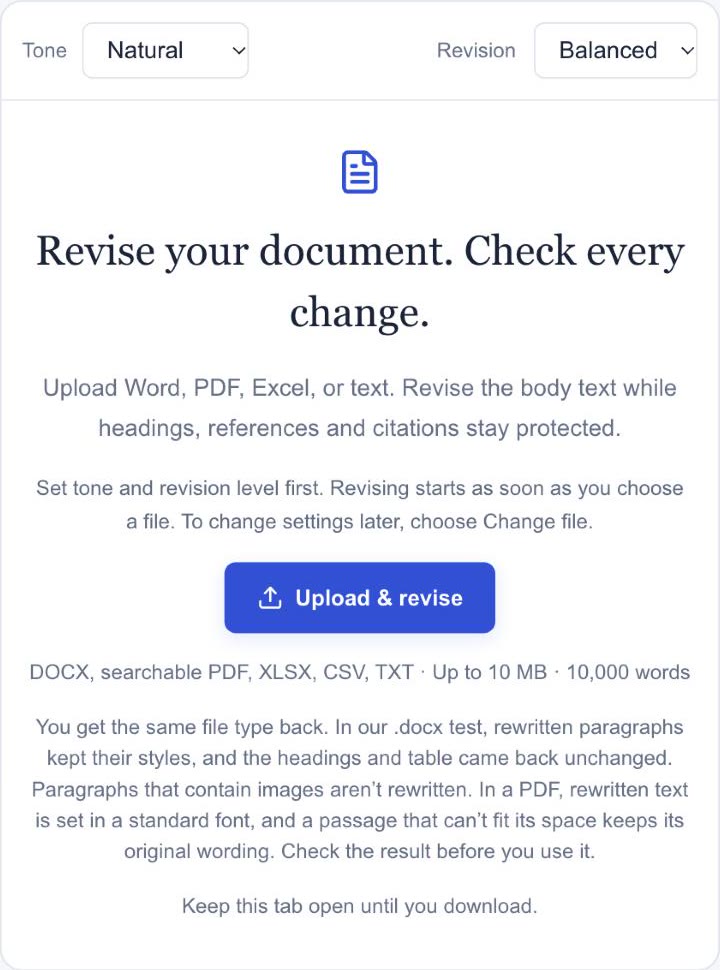
Open the workspace and stay on the Document tab. Set Tone (Natural, Academic or Simple) and Revision (Light, Balanced or Thorough) before you upload. They are locked once a file is open, and changing them means uploading again.
- Natural keeps a general register. Academic suits reports and papers. Simple aims for plainer wording.
- Start with Balanced. In our tests, the default Natural and Balanced settings produced wording that was no clearer than the draft, so try Simple if plainer prose is the goal.
2. Upload the .docx
Choose Upload & revise (or drop the file on the panel). Processing starts straight away.
3. Let it run, and read the status line
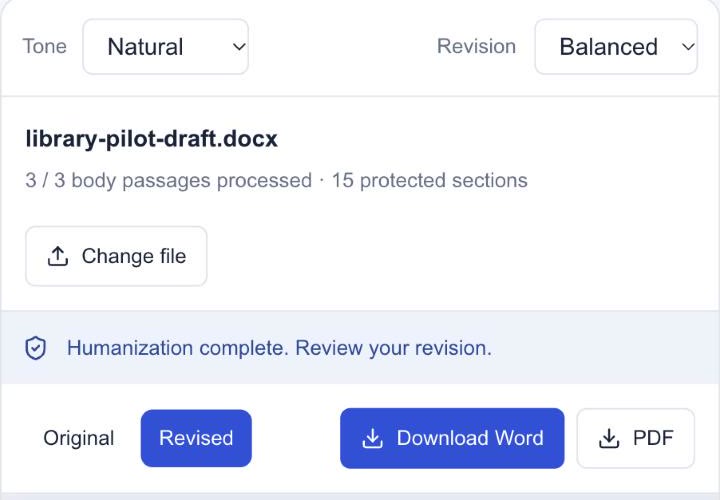
The file bar shows progress as “3 of 3 passages revised · 15 protected items”. Protected items are the headings, references, citations and short fragments left out of the rewrite. In this report, that included the short table cells. Our three-paragraph test finished in 2.9 seconds. Longer files take longer, and you can Pause and Resume. Keep the tab open until you download.
4. Review Original against Revised
Use the Original and Revised buttons to flip the same document between versions. The preview renders the real file, so the Revised view is what you will download.
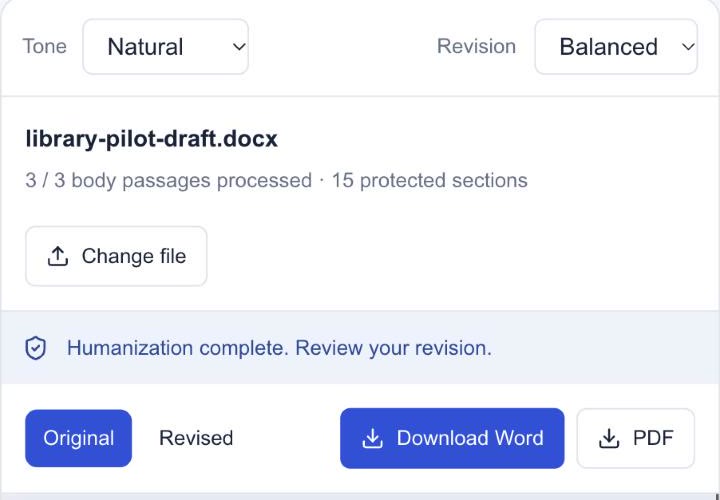
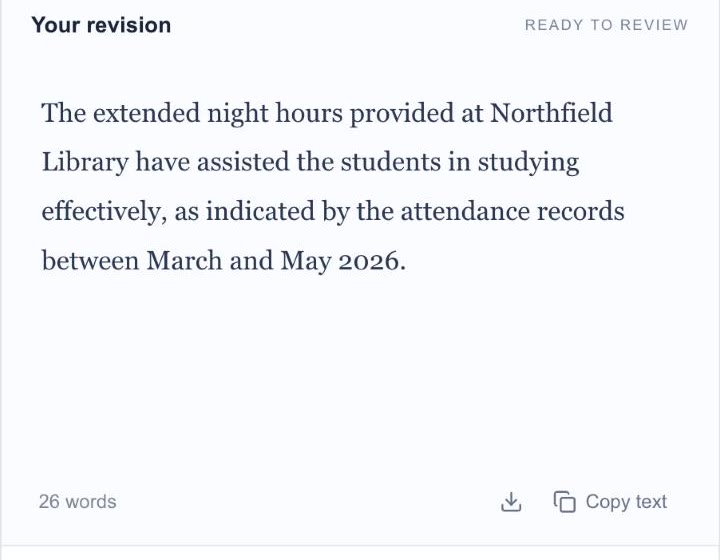
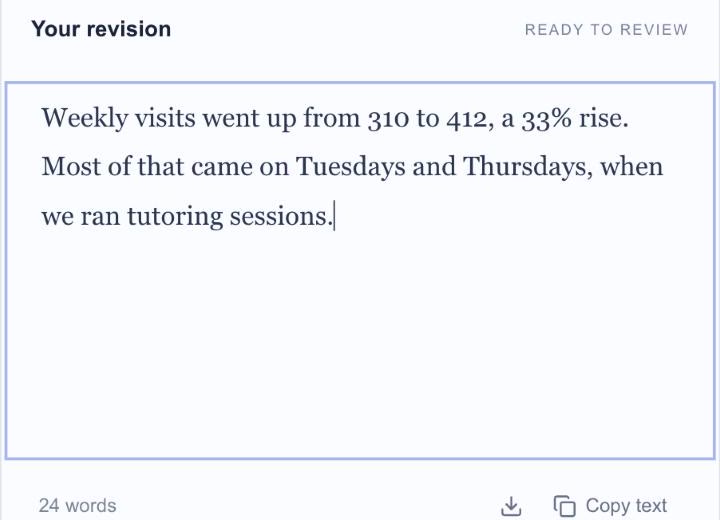
Check each changed paragraph for names, numbers, dates and reason words such as because, when and only. In this run, one paragraph lost the clause “when tutoring sessions were offered”. The review routine shows what to look for.
5. Download, then fix in Word
Choose Download Word to get a .docx, or PDF for a PDF made from the revised document. The Document view has no in-app editor, so make your fixes in Word. To see every change at once, open the download in Word and use Review → Compare against your original.
- Same file, new wording. In our test, the downloaded .docx differed from the original only in the three body paragraphs. Styles, run formatting, the table, the citation and the references were unchanged.
- Pagination can move. Reworded paragraphs change length, and browser or PDF pagination may differ from Word, so check page breaks.
- Not revised: Word headers, footers, footnotes and text boxes stay as written.
6. For a single passage, use Paste text
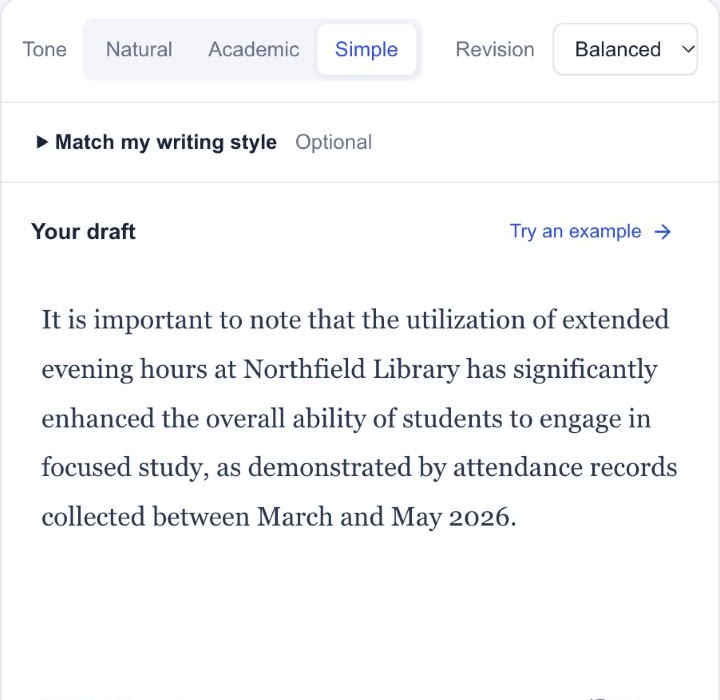
For one paragraph, the Paste text tab is quicker, and its revision box is editable, so you can make final changes in place. It also offers Match my writing style: paste a short sample you wrote, which guides word choice and rhythm.
Working with PDFs
PDFs need selectable text, so scanned pages won't work, and protected PDFs can't be changed. A revised PDF keeps its pages, images, lines and boxes, but rewritten passages are set in the closest standard font (Times, Helvetica or Courier) at the original size and color. Passages that can't fit keep their original wording, and the app tells you how many. The Word (editable, reflowed) download rebuilds the text as a Word document, so the layout reflows and graphics may be missing. If you have the original .docx, use that instead.
If something goes wrong
- “Choose a plan to start revising.” The file opened, but revising needs an active plan. Nothing was revised, so don't download the “Revised” view expecting changes.
- “No editable body paragraphs were found.” Everything in the file is a heading, a reference or too short to rewrite.
- “…kept their original wording.” Some passages couldn't be placed safely and were left unchanged. They are listed in the notes under the preview.
- The file is too large. Split it into files under 10 MB and 10,000 words each.